
Connect in ChatGPT
This guide shows how to connect Quantium MCP to ChatGPT so you can use Quantium tools directly in chat.
Before you begin
You will need:
- A ChatGPT account with at least a Plus plan subscription
- Access to the Quantium MCP server URL
Quantium MCP Server URL
- CN environment:
https://mcp.quantiumpe.com/mcp - SG environment:
https://mcp.quantiumportal.com/mcp - EU environment:
https://mcp-eu.quantiumportal.com/mcp
Step 1: Log in to ChatGPT
- Go to https://chatgpt.com/
- Log in using your account
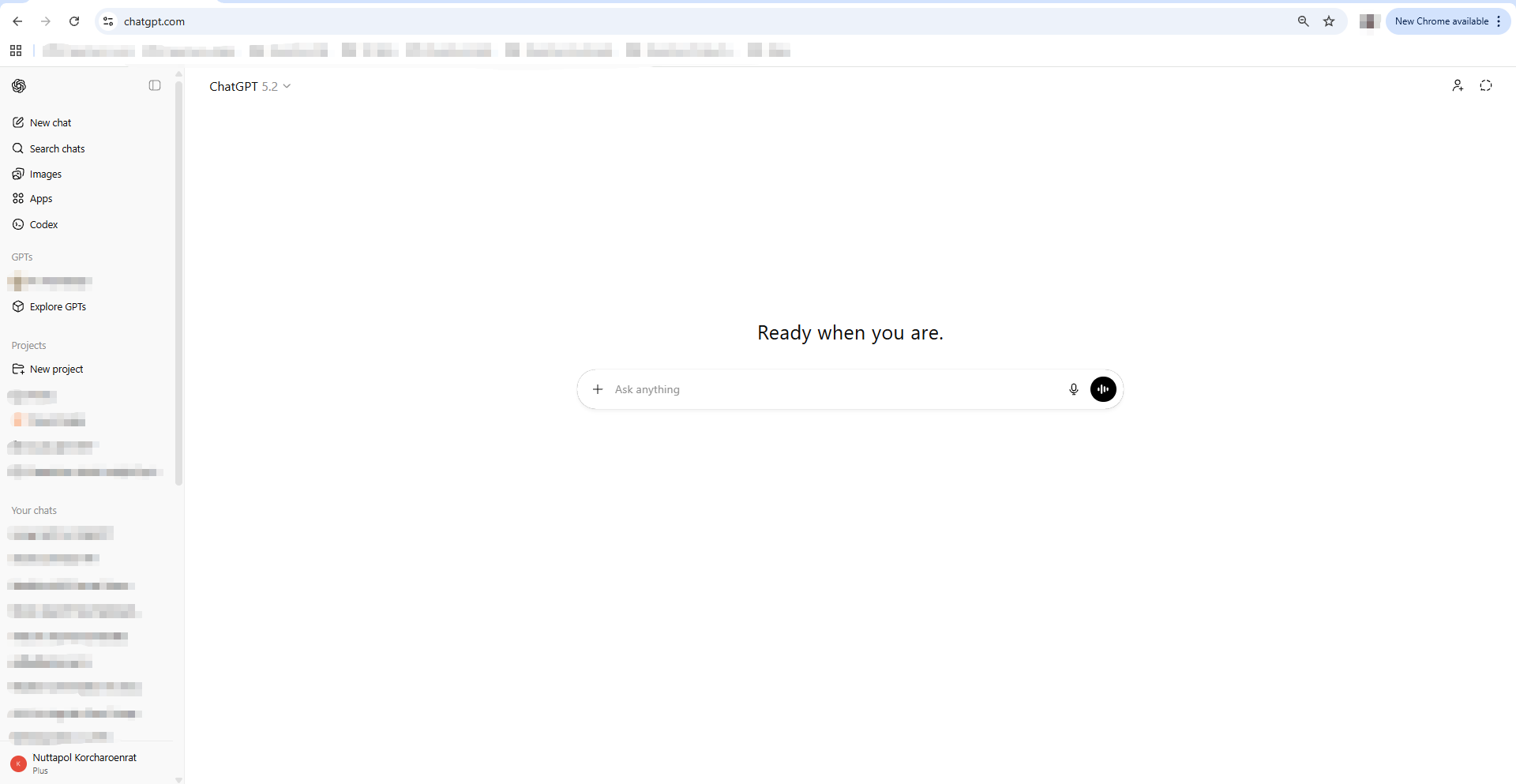
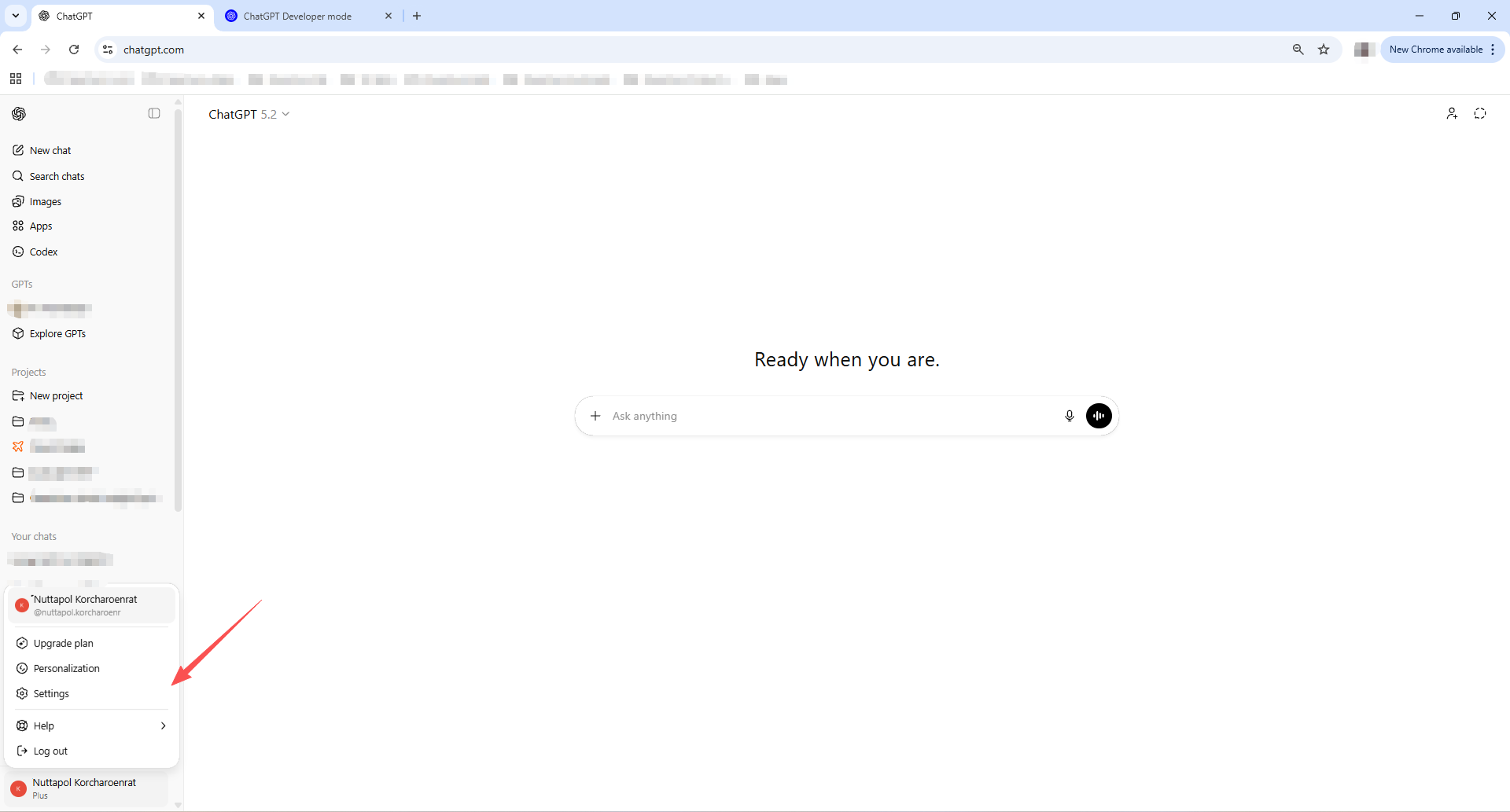
Step 2: Open settings
- Click your account menu
- Open Settings
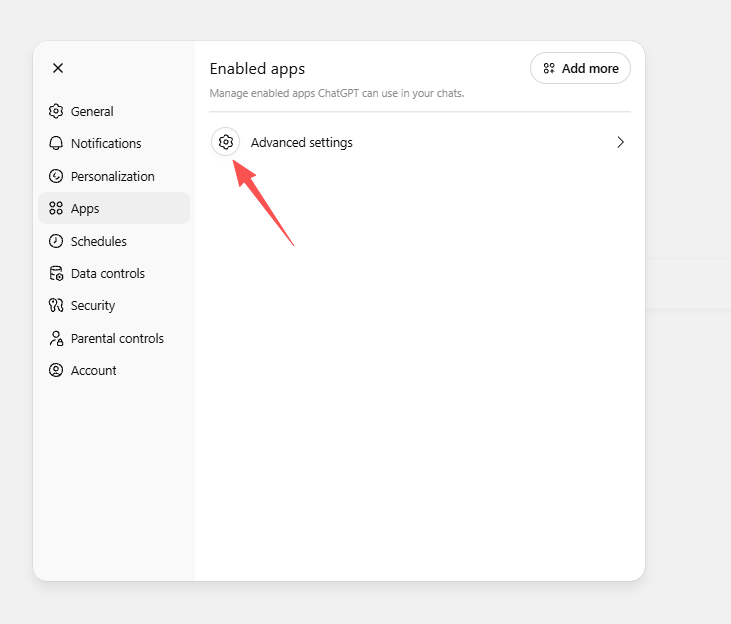
Step 3: Go to Apps
- Inside settings, go to Apps
- Click the ⚙️ (cog icon)
Step 4: Enable Developer Mode
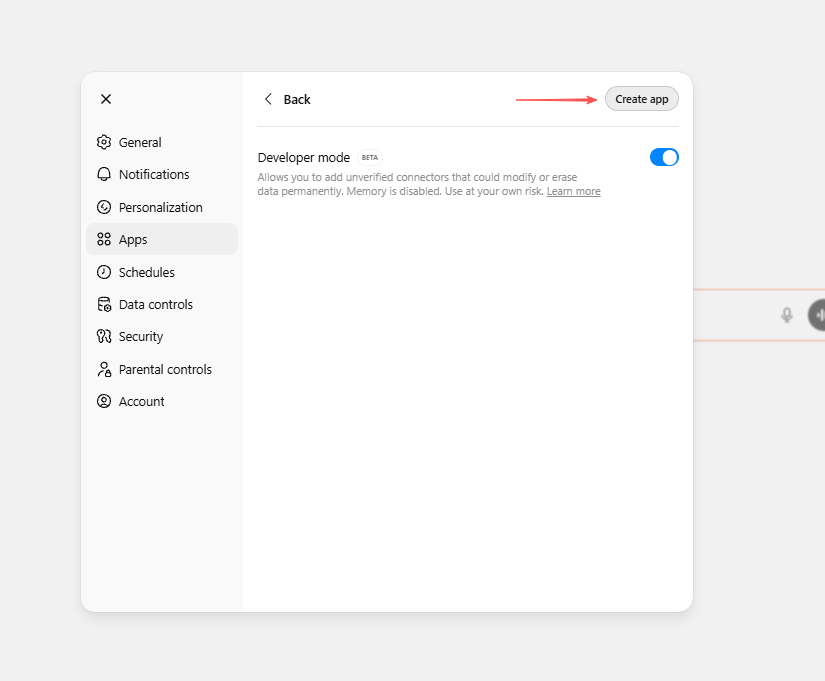
Turn on Developer mode
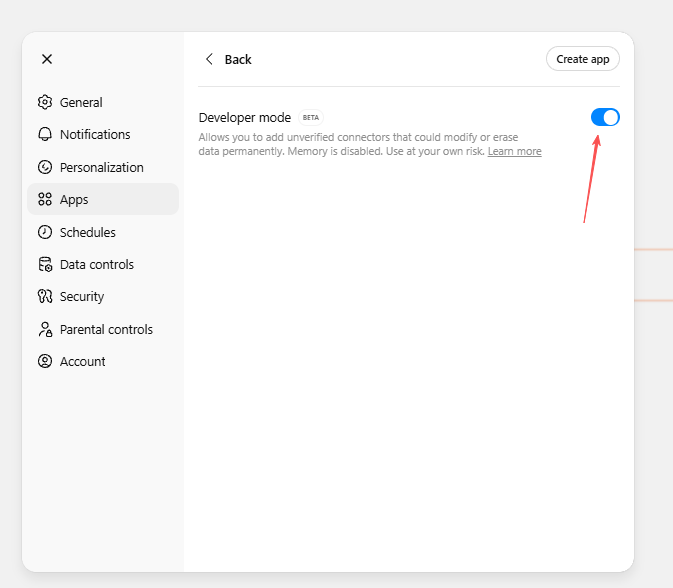
Step 5: Create a new MCP app
Click Create app
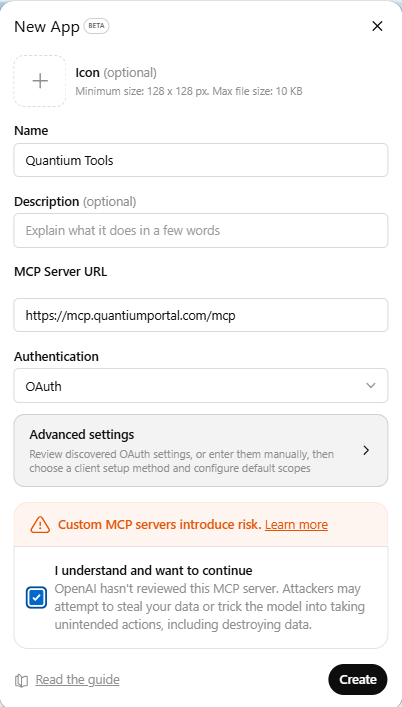
Step 6: Fill in MCP connection info
Fill in the MCP connection info:
- Name:
Quantium Tools - Description: Optional
- MCP Server URL: SG environment
https://mcp.quantiumportal.com/mcp, EU environmenthttps://mcp-eu.quantiumportal.com/mcp - Authentication:
OAuth
CN server users only: Click Advanced settings and change Registration method to DCR. This is required because the CN server cannot reach ChatGPT's servers for automatic client registration.
Then select “I understand and want to continue” and click Create
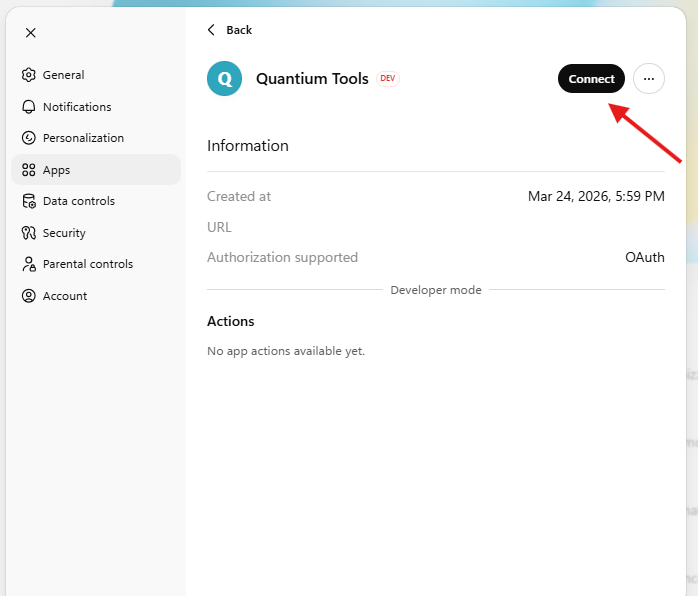
After creating it, the Quantium Tools app will appear below. Click on it, then click "Connect"
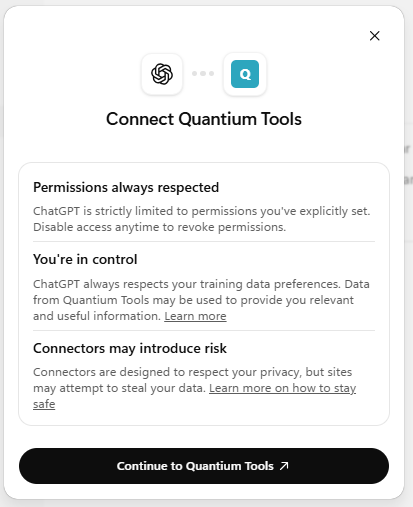
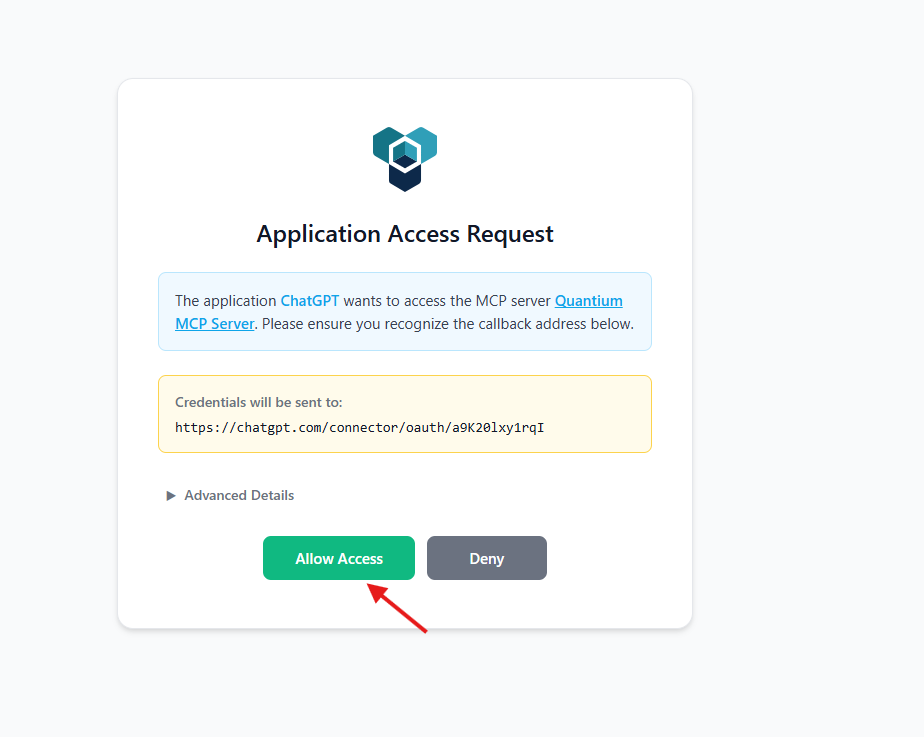
A consent page will be shown. Click "Allow access"
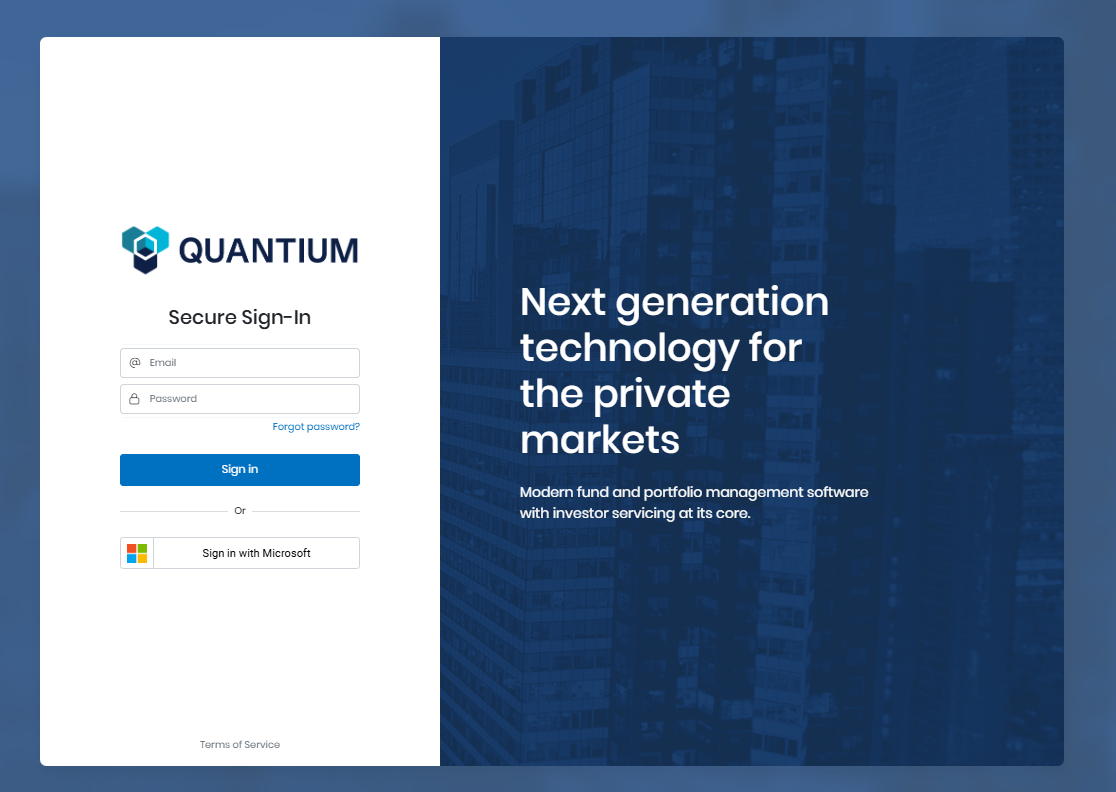
A Quantium login popup will appear. Enter your username and password, then click "Sign in"
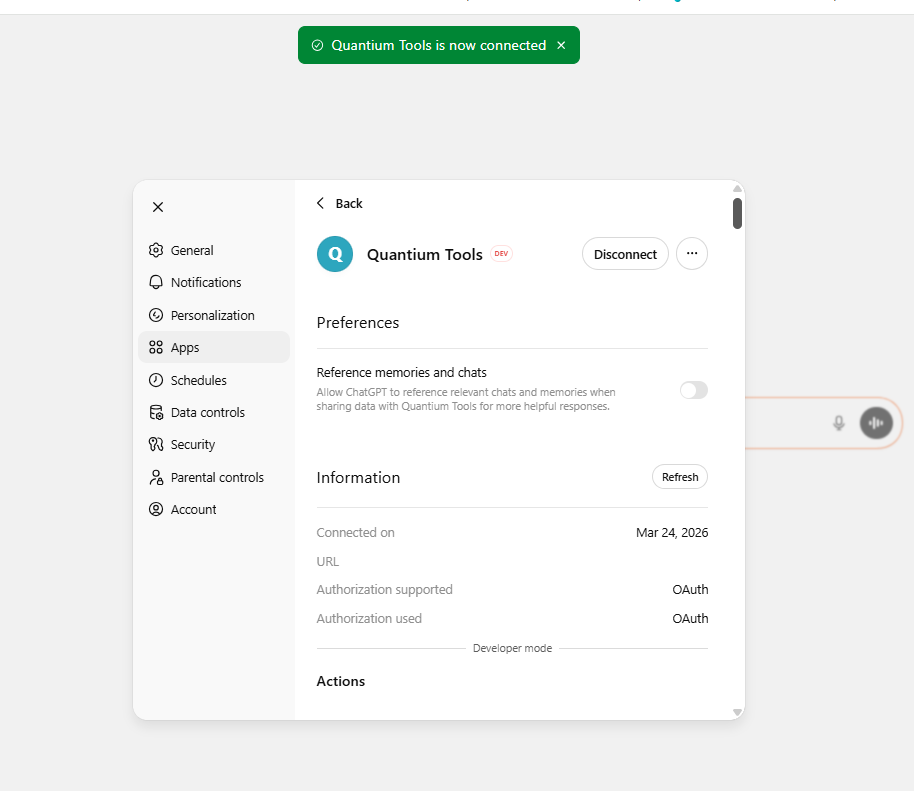
If you see “Quantium Tools is now connected” it means you are ready to use our MCP tools.
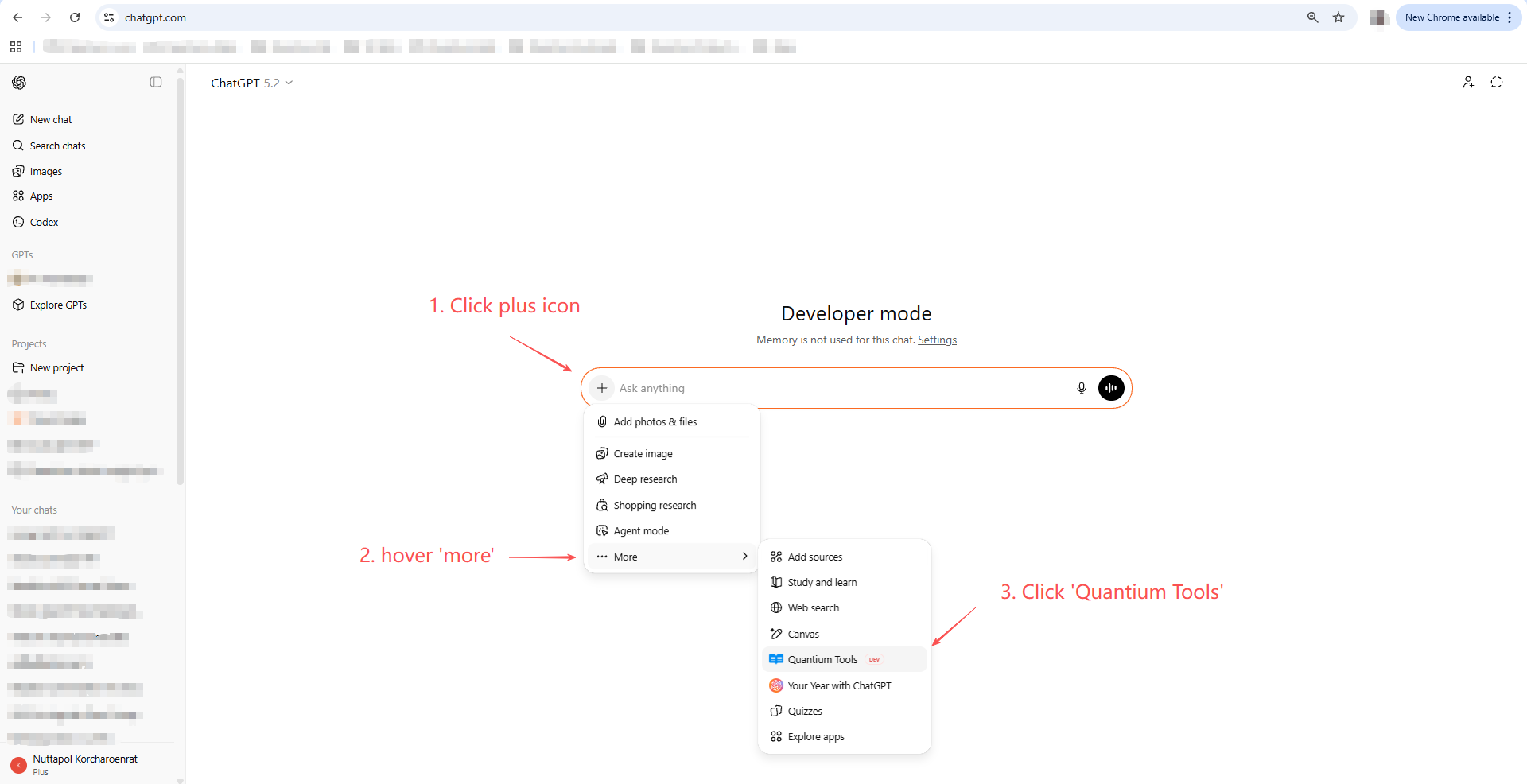
Step 7: Start using Quantium tools in chat
- Go back to the chat page
- Open the tool/app picker
- Select Quantium Tools
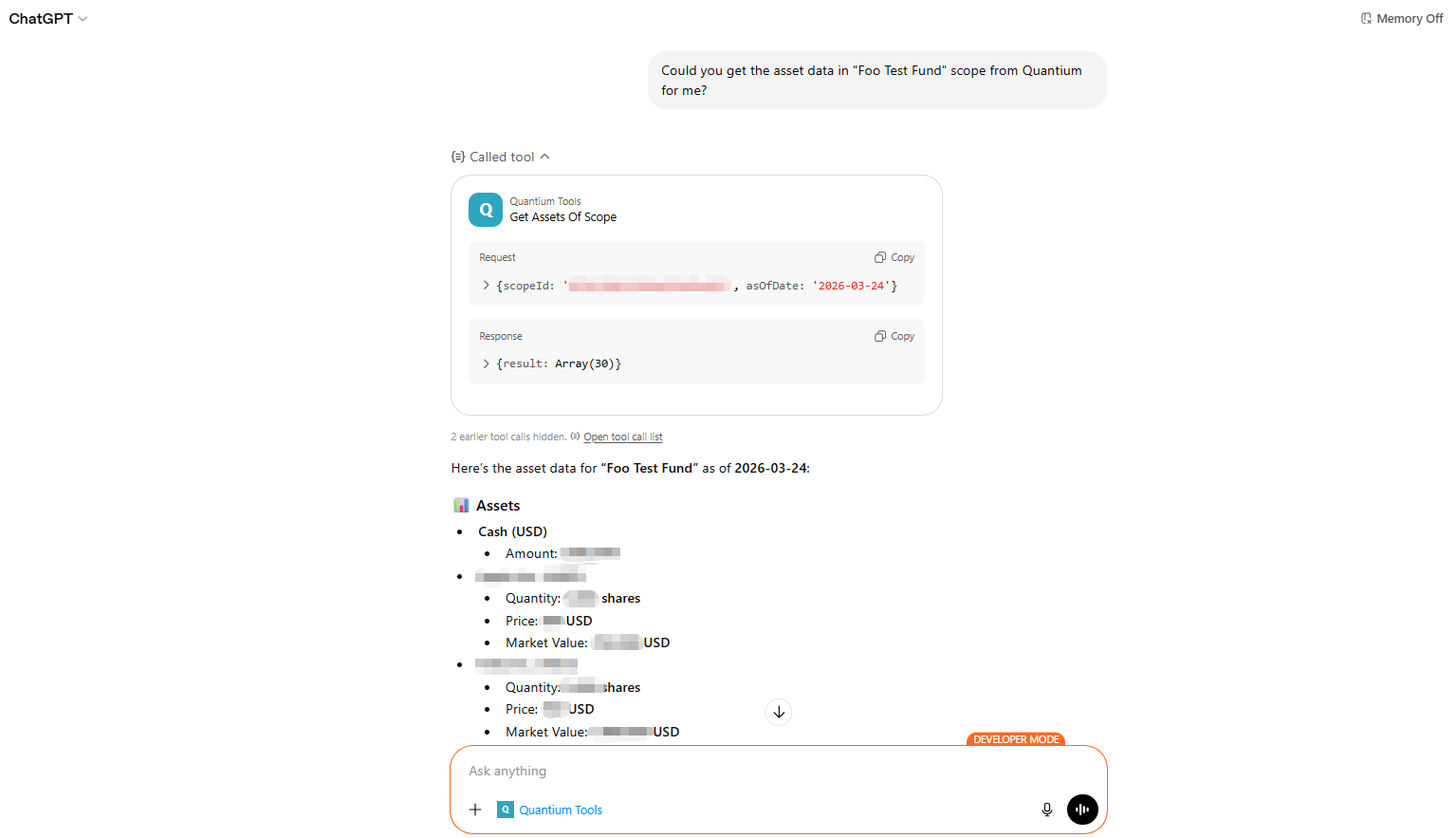
Then start asking questions such as:
- "Could you get the asset data in
Your scope namescope from Quantium for me?"
Updated 3 months ago