
Connect in Claude
This guide shows how to connect Quantium MCP to Claude so you can use Quantium tools directly in chat.
Before you begin
You will need:
- A Claude account
Note: Free plan Claude users are limited to one custom connector.
- Access to the Quantium MCP server URL
Quantium MCP Server URL
- CN environment:
https://mcp.quantiumpe.com/mcp - SG environment:
https://mcp.quantiumportal.com/mcp - EU environment:
https://mcp-eu.quantiumportal.com/mcp
Note for CN server users: Claude is not available in China (see https://www.anthropic.com/supported-countries). The CN MCP server cannot be connected via Claude. Please use ChatGPT instead
Step 1: Log in to Claude
- Go to https://claude.ai/
- Log in using your account
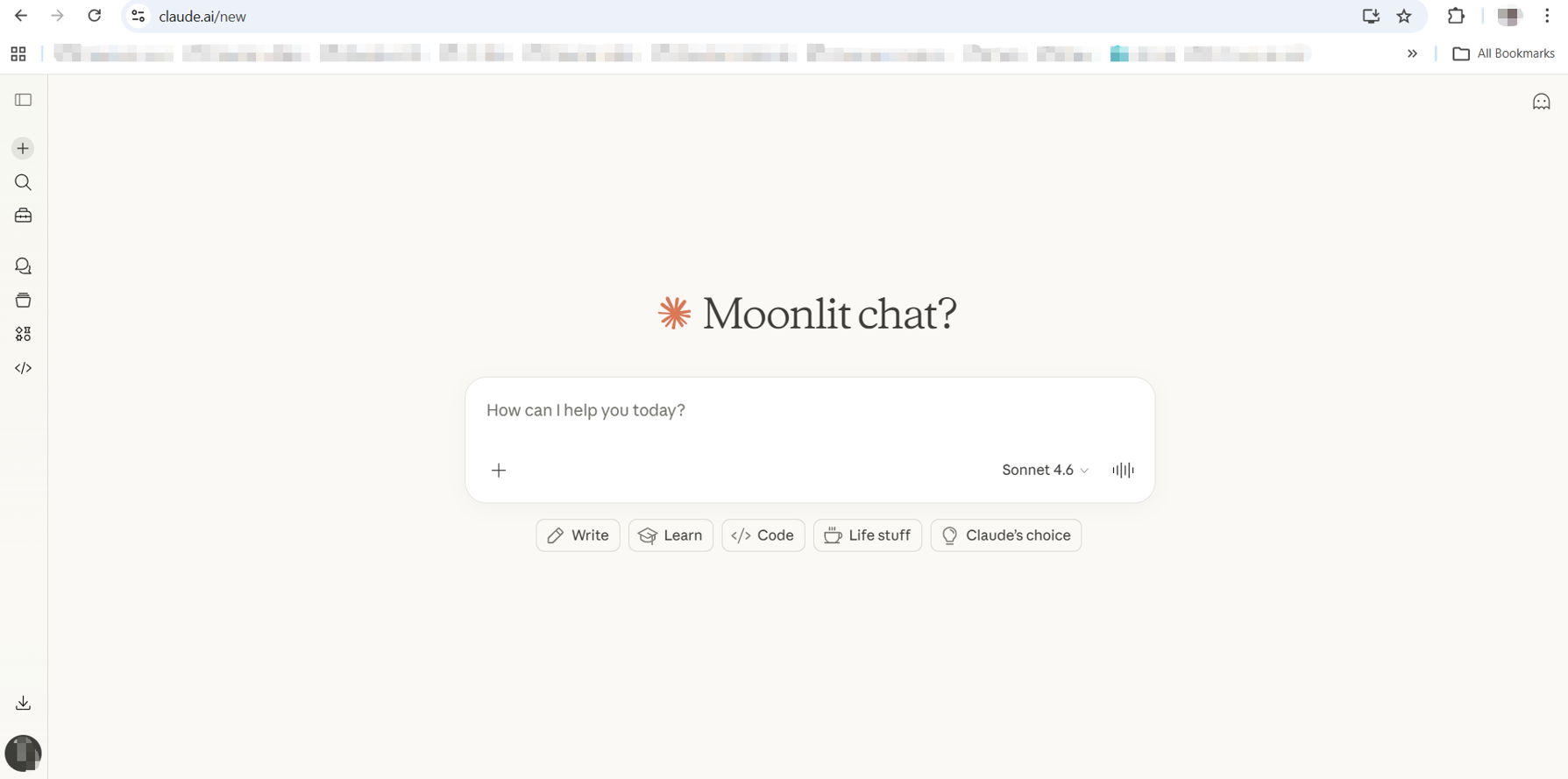
Step 2: Add Quantium MCP tools
- Click Customize (suitcase icon)
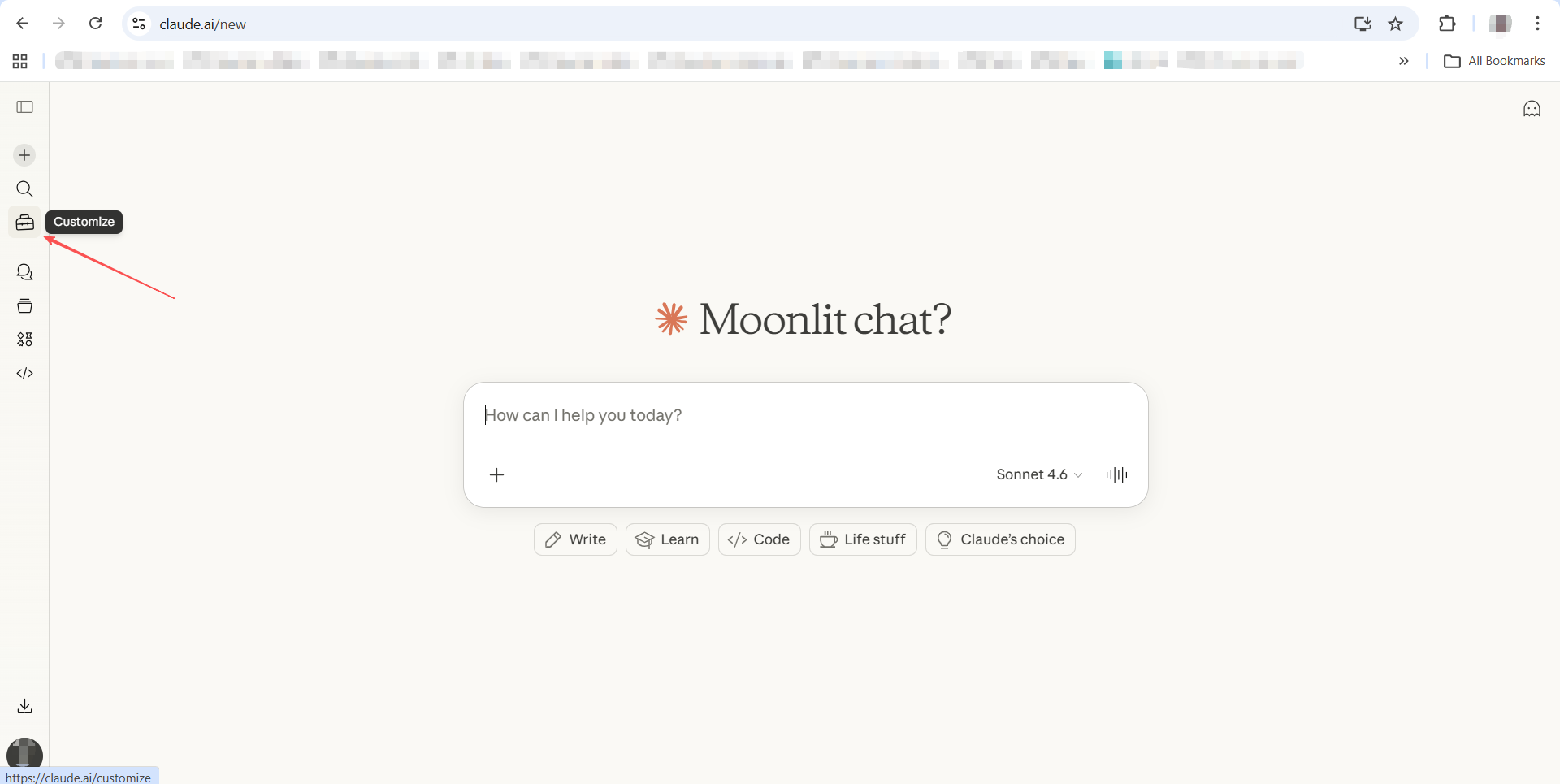
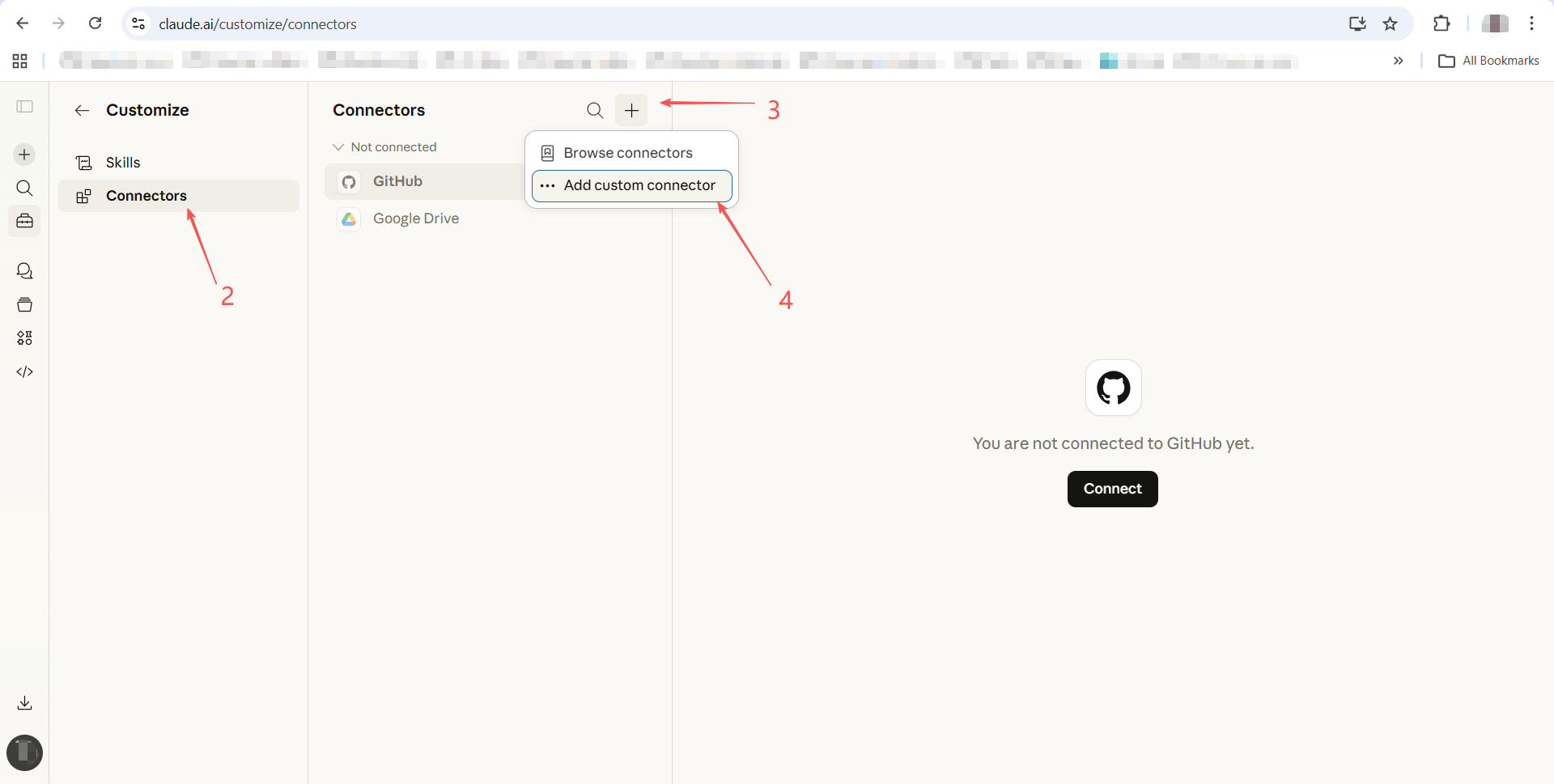
- Click Connectors
- Click the plus sign icon
- Click Add custom connector
-
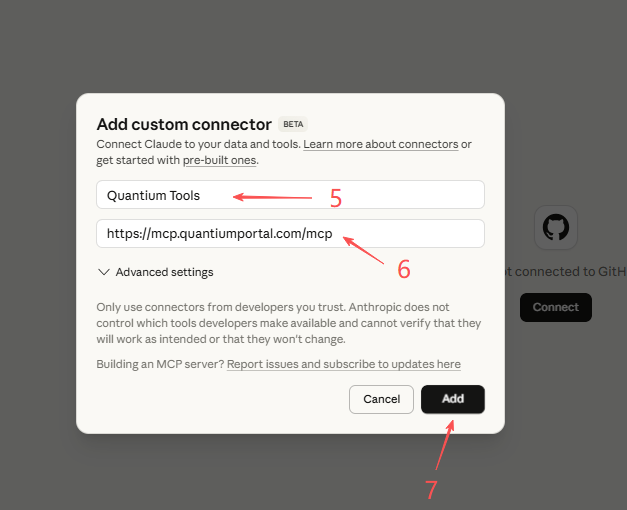
Input a tool name. You can name it whatever you want. In this example we will use Quantium Tools.
-
Input the remote MCP server URL: SG environment
https://mcp.quantiumportal.com/mcpEU environmenthttps://mcp-eu.quantiumportal.com/mcpNote for CN server users: Claude is not available in China (see https://www.anthropic.com/supported-countries). The CN MCP server cannot be connected via Claude. Please use ChatGPT instead
-
Click Add
-
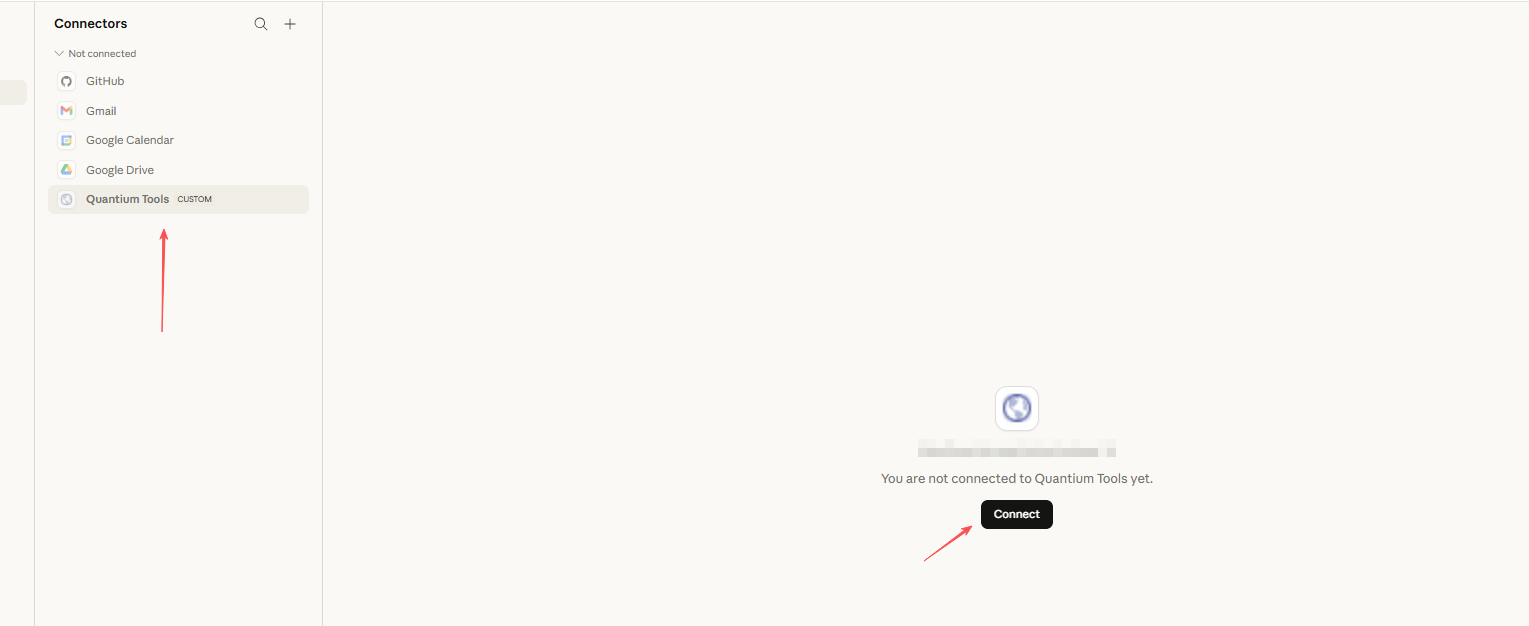
You will see Quantium tools show in the connectors list -> click Quantium Tools -> click connect
-
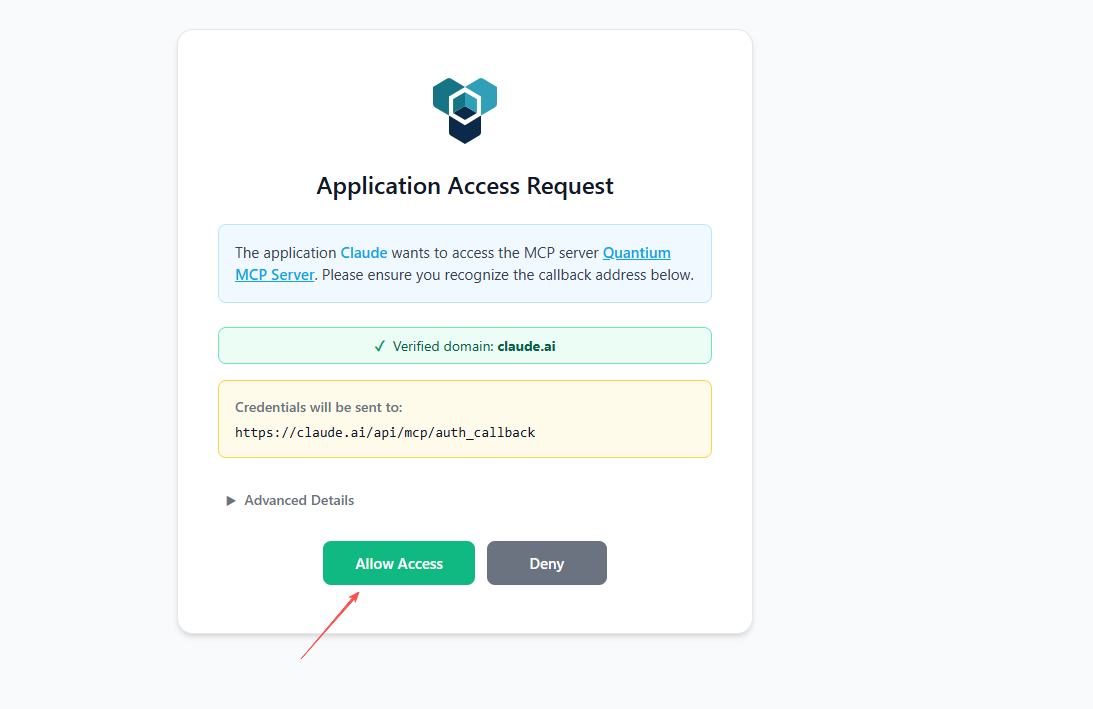
A consent page will be shown. Click "Allow access"
-
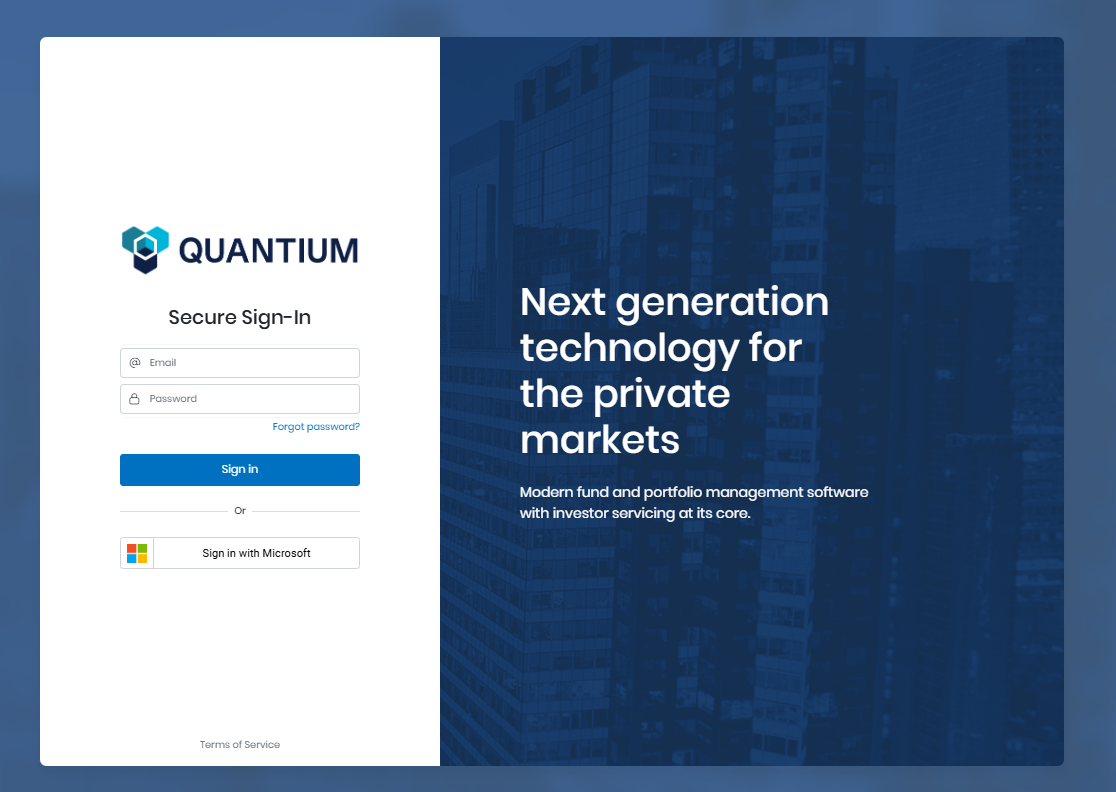
A Quantium login popup will appear. Enter your username and password, then click "Sign in"
-
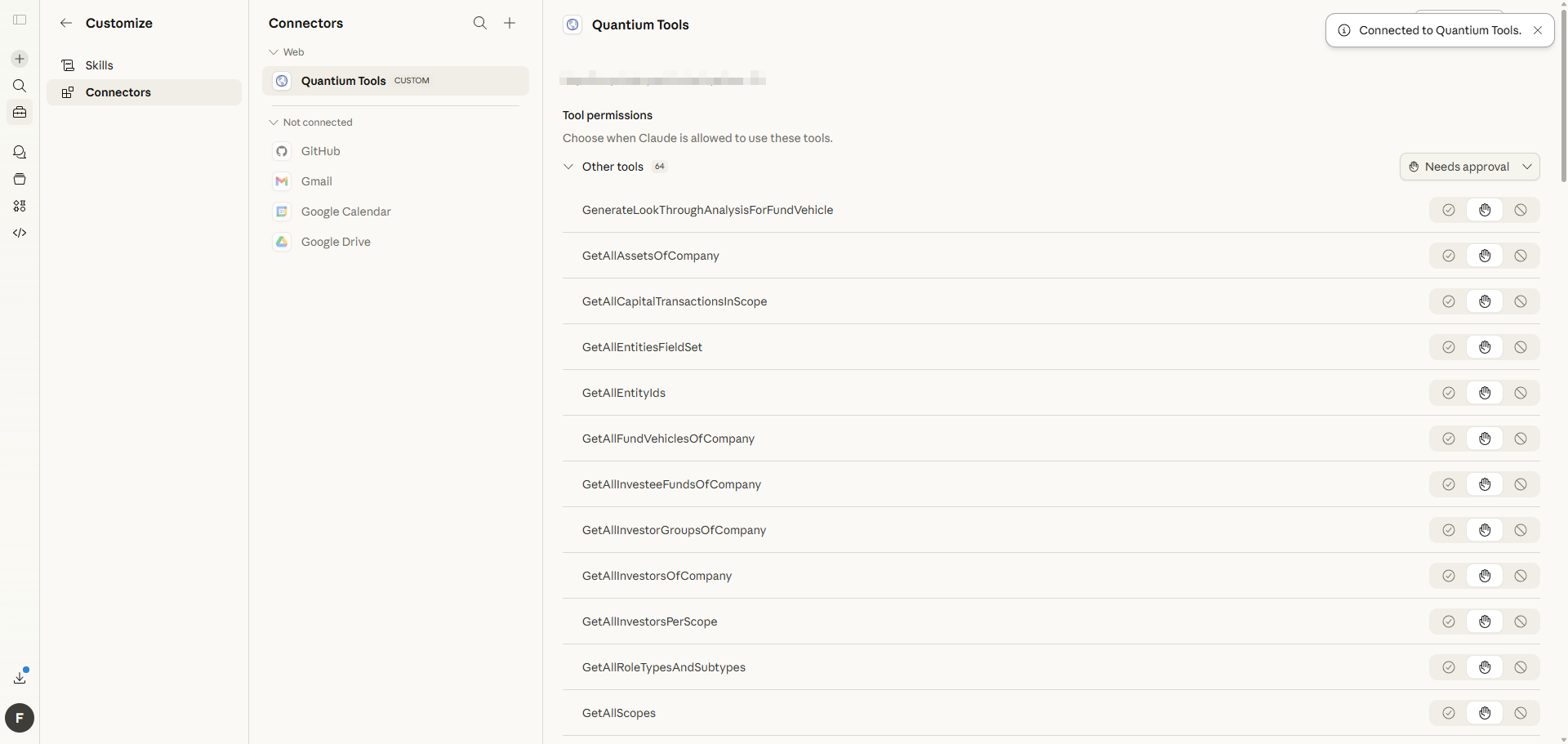
If you see tool list it means you are ready to use our MCP tools.
Step 3: Try chatting with Quantium MCP tools
-
Open a new chat
-
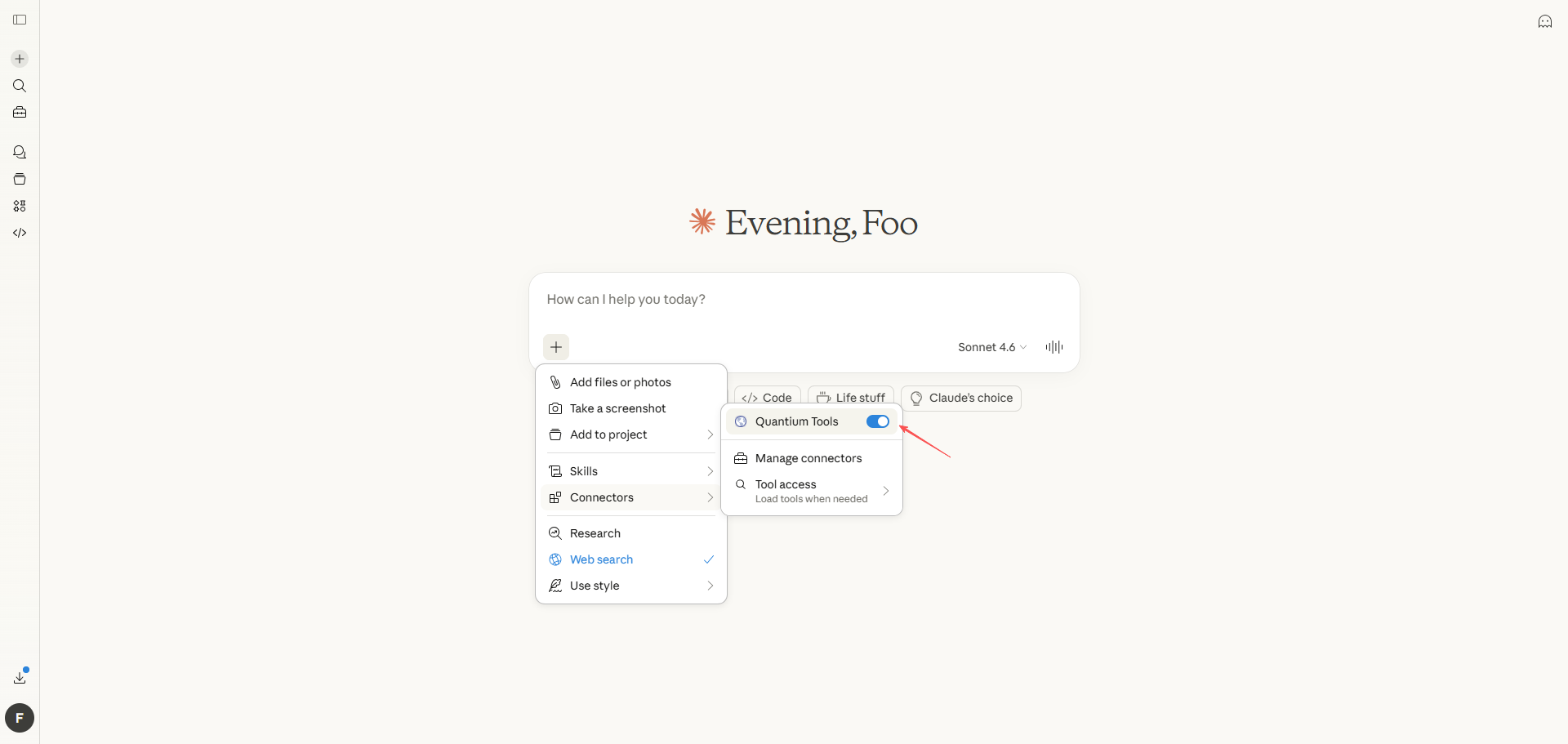
Click the plus sign button on the left side of the chat box and click Connectors. If you see Quantium Tools enabled, it means this chat can use the tools.
-
Now you can ask questions about your Quantium data. In this example we will retrieve Could you get the asset data in
Your scope namescope from Quantium for me?.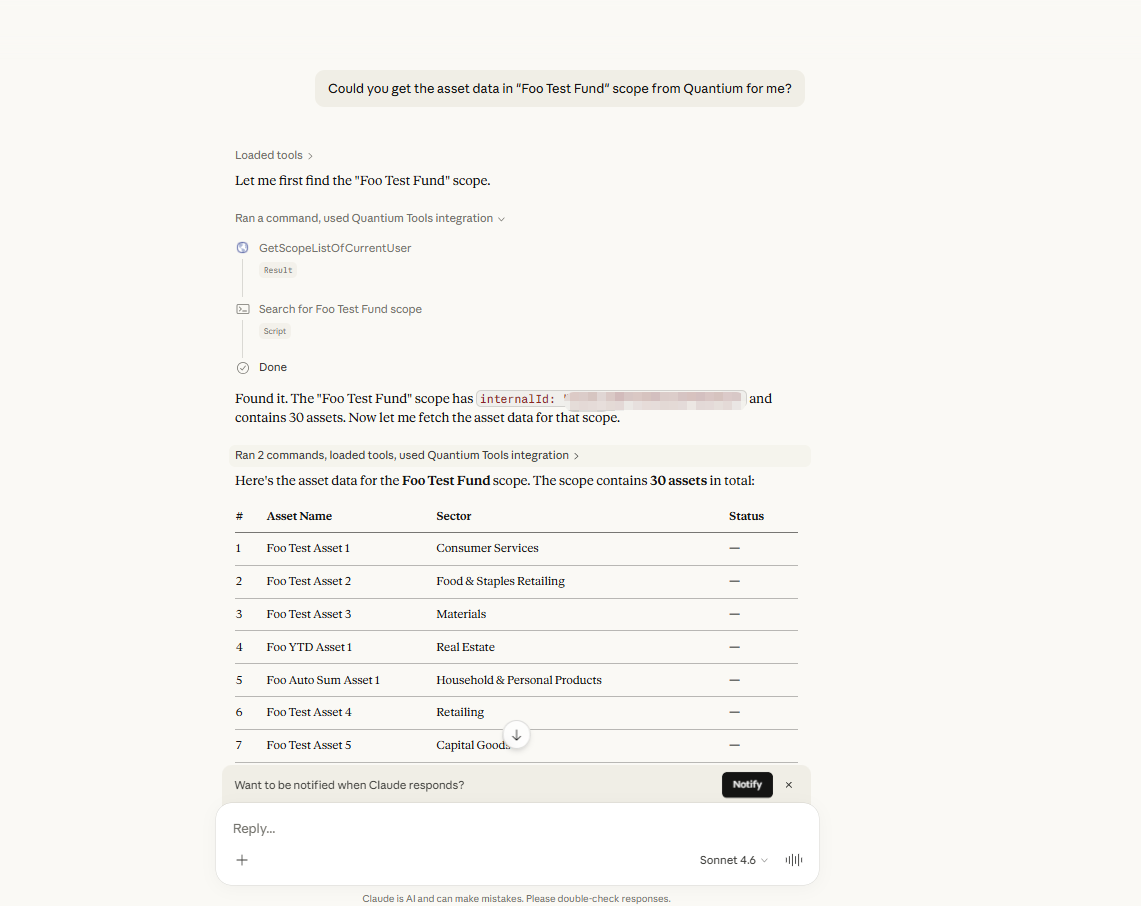
Updated 3 months ago